Manager phone
Plan and review Actions, manage tracked phones, and Analyze the results.
PLAN → TRACK → ANALYZE
View planned Actions in the Calendar. Define each Action in Add/Edit Action, connect a tracked phone in Admin, and match recorded activity to the relevant Actions before comparing their results.
EVERY WORKING DAY IS BUILT FROM ACTIONS
Create an Action in Add/Edit Action. It becomes an Action Card on the Plan Calendar. Keep it independent or link it to another Action. Later, use Match on its card to associate selected tracking evidence.
Lists provide the shared truck, operator, customer and site context.
Start with Drive, Load, Unload, Fuel or Break—or create your own Action Template. Add Custom Fields to any template.
Each Action becomes a calendar Action card. After matching, tracked values appear below the planned values.
The same record appears in Tracked Actions and contributes to Analyze.
Planning records and phone setup are complementary. You do not have to create an Action or site for every possible stop before recording a journey.
PLAN ACTIONS / CARD GUIDE
Use the actual card below to see where its values, filters and commands appear.
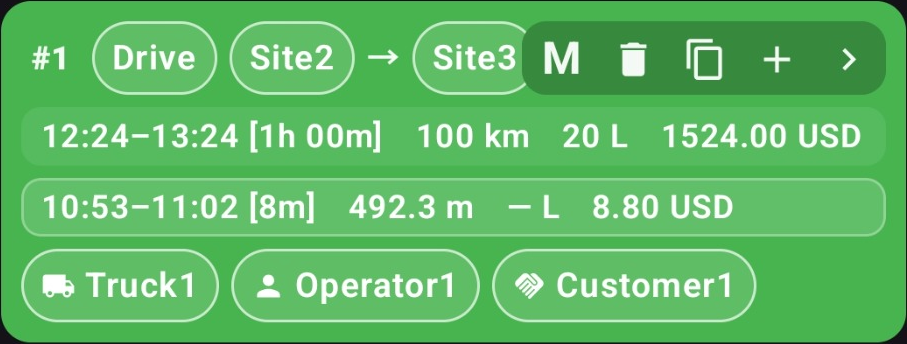
Select a button on the card to see its explanation. Hover or select an explanation to find its control. This demo does not change app data.
To duplicate the full chain, start at its first Action. The duplicate contains fresh planned Actions, without the previous tracked results.
Actual app screenshot with sample records. Values and controls are unchanged; only explanatory highlights are added. Not the Chiang Mai field test or a savings result.
ADMIN / CONNECT THE PHYSICAL TRUCK TO THE WORKFLOW
Use two phones: the manager displays the invitation QR, and the tracked phone scans it. Then assign a Truck and complete the tracking setup.
Plan and review Actions, manage tracked phones, and Analyze the results.
Keep this phone with its assigned truck to record location and movement.
On the manager phone, open Admin → Set New Phone and keep the invitation QR visible. On the tracked phone, install and open PlanTrackAnalyze.
On the tracked phone, tap Scan invitation, then tap it again in Connect this Tracked Phone. Aim its camera at the manager’s QR. Compare the QR check on both phones, then tap Pair phone to confirm.
On the manager’s new Phone Card, choose the Truck this physical phone will track. Keep the tracked phone with that Truck so its recorded activity has the correct assignment.
With available tracked-phone capacity, turn Tracking on for the Phone Card. Complete the agreement and permissions on the tracked phone, then check its running state and fresh status on the manager. Choose capacity in Admin through Google Play.
Pairing connects the phone. Tracking starts only after its Phone Card is active and the tracked phone’s agreement and permissions are complete.
THE PHONE CARD
Use the Phone Card to select a truck, turn Tracking on or off, and review reported battery, connection and last-seen information. Connection QR reconnects the same physical phone when needed.
In the app, Connection QR reconnects this same physical phone. This illustration contains no pairing invitation.
Example: CM-01 is assigned; Tracking uses 1 place from a capacity of 5.
Interactive Phone Card illustration with sample values. These controls do not connect a device or change a subscription.
Turning Tracking off frees that phone’s place in your purchased capacity. It does not cancel or reduce the subscription. Complete the phone’s consent and permissions, and check that data are arriving.
THE CONNECTION / MATCH THE ACTION TO THE EVIDENCE
Match recorded activity to an Action. Its Calendar card, the Tracked Actions history view and Analyze then refer to the same Action.
Open Match on the Action Card. Select the relevant SiteTimeline evidence, including only the intervals that belong to this Action.
Unload Cafe supplies · West CafeThe saved match links a recorded interval to its named Action. Review that Action in its history and map context.
Unload Cafe supplies · West CafeInspect the same Action or the group it contributes to. Follow a difference back to its records, rather than relying on a disconnected total.
Unload Cafe supplies · West CafeIn this example, all three views refer to the same Unload Action at West Cafe.
TRACK / LIVE VISIBILITY + FOUR HISTORY VIEWS
Start with live positions and available truck status. When you review a journey, choose the view that answers your question—not a different set of data to reconcile.
Live brings the tracked trucks onto one map. Choose a truck and time window to examine its history, with freshness and missing information kept visible.
Which sites did the truck visit?
Review the geographic history at your defined pickup, delivery and other sites, including the recorded visit intervals.
Use it to review a loading-site visit.
Where did it stop between those sites?
Review stop and movement classifications independently of predefined site geofences. An unexpected stop becomes something you can investigate.
Find a stop at a place you never added to Sites.
What happened around this exact moment?
Use up to three linked time sliders to move from a broad interval to finer detail, while following the selected time on the map.
Keep the journey in context while inspecting a short interval.
Which planned Action does this activity belong to?
See Actions with saved evidence matches in their tracked time and map context. Review the work using its own names—not only Stop and Move labels.
Recognize “Unload Cafe supplies at West Cafe.”
SiteTimeline and StopsMoves use separate algorithms. Advanced Sliders navigates time, while Tracked Actions shows your saved Action-to-evidence matches.
SiteTimeline and StopsMoves images are actual app captures. Advanced Sliders and Tracked Actions remain described here; final current screenshots are still needed.
A COMPLETE DELIVERY ROUND
Two pickups. Three deliveries. Fuel and a break. Return pallets. Keep the whole sequence connected, without losing the detail of each Action.
Illustrative Chiang Mai delivery scenario. Names, work and results are demonstration data; screenshots are source-informed placeholders, not recorded operations.
Plan / MOMENT 01
Extend the Load by five minutes. Its dependent Drive and Unload shift together, while keeping their durations. The same link continues through the 16-Action plan.
The revised full-round finish is 12:32. Try the three-card calendar example.
Each dependent start is linked to the previous finish.
First Action
Starts when Load finishes
Starts when Drive finishes
Original plan: Load 09:42–09:52. Drive follows at 09:52; Unload at 10:04.
Interactive calendar example. Each dependent start follows the previous finish with no gap. Illustrative planned times.
Track / MOMENT 02
The example includes a seven-minute stop between the pickup and Central Cafe. StopsMoves makes it reviewable even though that place is not a saved site.
A stop is a reason to investigate—not proof of misconduct. SiteTimeline provides separate geographic context.
Plan / MOMENT 03
Filter to the café customer and Unload Actions. At West Cafe, the planned and illustrative tracked rows show the extra time immediately.
At an illustrative action-level rate of 600 THB/hour: 80 THB planned versus 120 THB time cost. No distance or fuel cost is included.
Analyze / MOMENT 04
Review the two café unloading Actions together, group by site, and expand to the records underneath the totals.
Illustrative comparison: 16 planned minutes and 20 tracked minutes across two unloading Actions.
| Action | Action details | Original plan | Revised plan |
|---|---|---|---|
| DriveCM01 | East Depot → North Supply Depot | 09:30–09:42 | 09:30–09:42 |
| LoadCM02 | 30 cartons · Cafe supplies | 09:42–09:52 | 09:42–09:57 |
| DriveCM03 | North Supply Depot → Central Cafe | 09:52–10:04 | 09:57–10:09 |
| UnloadCM04 | 12 cartons · Central Cafe | 10:04–10:12 | 10:09–10:17 |
| DriveCM05 | Central Cafe → West Cafe | 10:12–10:24 | 10:17–10:29 |
| UnloadCM06 | 18 cartons · West Cafe | 10:24–10:32 | 10:29–10:37 |
| DriveCM07 | West Cafe → Fuel stop | 10:32–10:47 | 10:37–10:52 |
| FuelCM08 | Huay Kaew Fuel Stop | 10:47–10:57 | 10:52–11:02 |
| BreakCM09 | Huay Kaew Fuel Stop | 10:57–11:12 | 11:02–11:17 |
| DriveCM10 | Fuel stop → South Supply Depot | 11:12–11:32 | 11:17–11:37 |
| LoadCM11 | 20 cartons · Hotel supplies | 11:32–11:42 | 11:37–11:47 |
| DriveCM12 | South Supply Depot → Old City Hotel | 11:42–11:54 | 11:47–11:59 |
| UnloadCM13 | 20 cartons · Old City Hotel | 11:54–12:04 | 11:59–12:09 |
| LoadCM14 | 4 empty return pallets | 12:04–12:09 | 12:09–12:14 |
| DriveCM15 | Old City Hotel → East Depot | 12:09–12:21 | 12:14–12:26 |
| UnloadCM16 | 4 empty pallets · East Depot | 12:21–12:27 | 12:26–12:32 |
ANALYZE → PLAN
Filter and group the Actions in Analyze, expand the contributing records, and review what differed. In Add/Edit Action, use comparable history to inform estimates. Copy a suitable sequence to a future date without recycling its execution evidence.
CONTEXT-AWARE GUIDANCE
The right entrance. The loading procedure. The paperwork. Capture operational know-how in text, photos and video, then select relevant guidance for the customer, site, truck or Action.
Build the knowledge base over time—and reduce dependence on owners and dispatchers repeating the same explanation.
YOUR NEXT WORKING DAY
Bring your next working day through one connected workflow.
Android app · 14-day trial at every capacity · Eligibility applies